Export keys
Export downloads the file of one language from the last published version of the keys, in one of the output formats of the project. This page covers where the export opens, the screen, what the file contains, and the messages an export can end with.
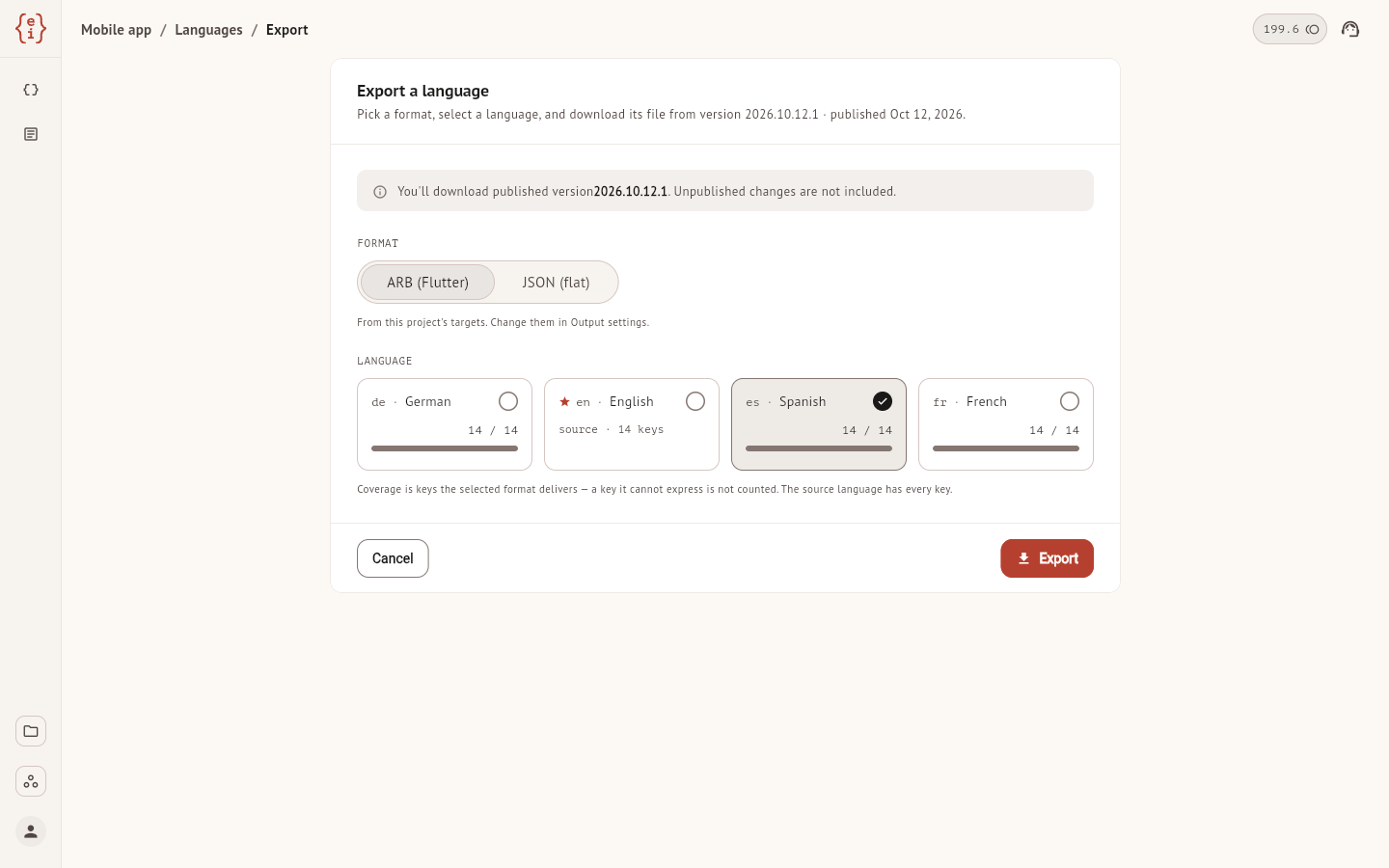
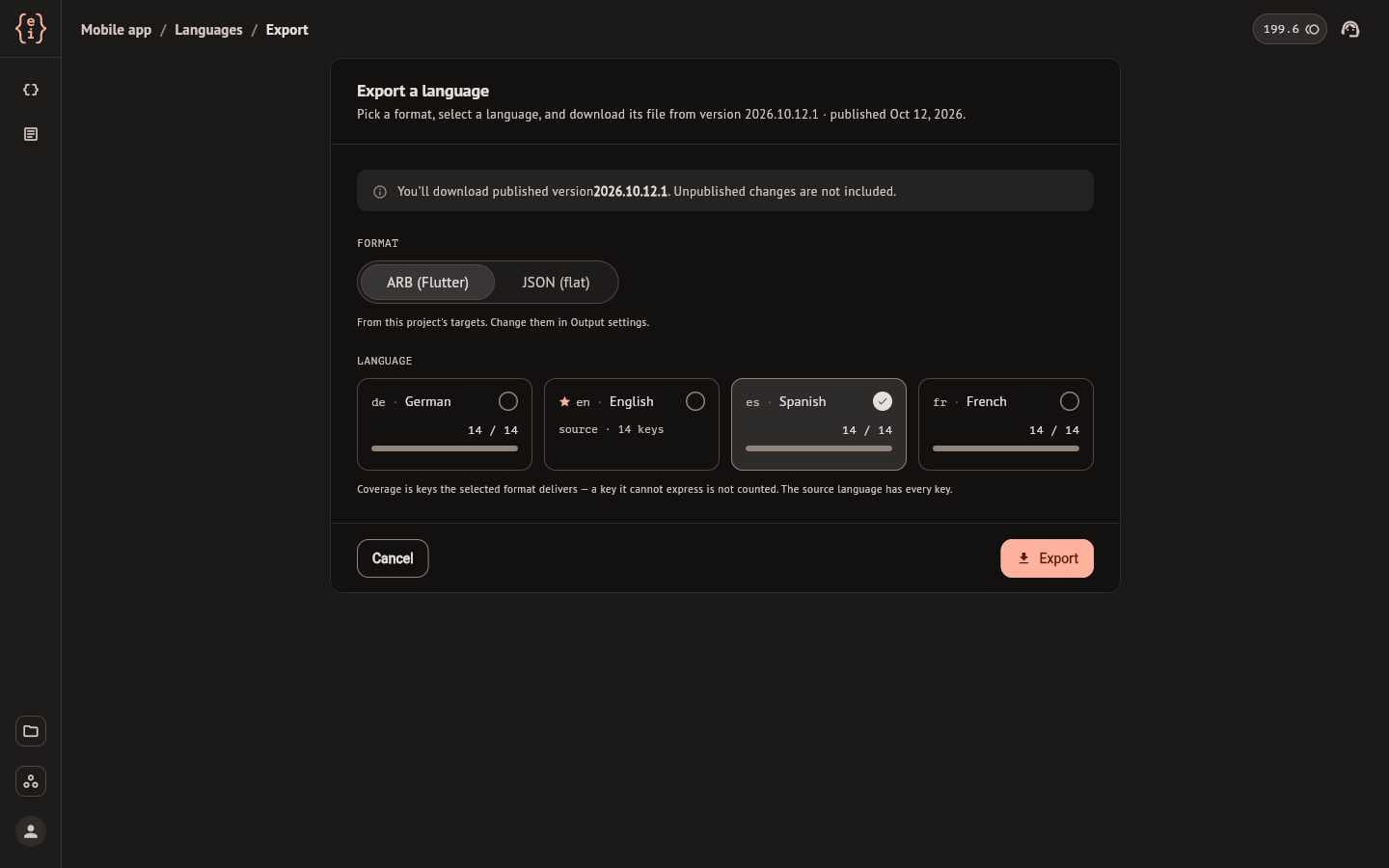
Open the export
In the project settings, select Export keys in the Languages section.
Export reads a published version, so a project that has never published gets a dialog instead of the screen. Publish a version describes it. Exporting changes nothing in the project and spends no credits.
Export a language
- Under Format, pick one of the output formats of the project. A project has one or two, set under Output in the project settings. With a single format there is nothing to pick, and with none the screen asks you to enable one first.
- Under Language, select a card. The base language reads
sourceand its number of keys. Every other language shows how many keys of the version the file will hold, as in14 / 14. - Select Export. The browser downloads the file and the screen answers "Exported" with its name.
What you get depends on the format:
| Format | Download |
|---|---|
| ARB, flat JSON, nested JSON, Angular JSON, gettext PO | One file for the language, such as app_es.arb or es.json |
| iOS strings, Android XML | A zip with the folder the platform expects, because the language is part of the path |
| String Catalog | One .xcstrings file that holds every language, whichever card you selected |
The file formats reference has a sample of each file and its limits.
What the file contains
The file is a copy of the published version named at the top of the screen, with its number and the day it was published. A change you made after that publish is not in it. Publish again, then export.
The count on a language card is the number of keys the selected format
writes for that language. It can differ between the two formats of a project:
a plural that lacks its other form is written by gettext PO and left out by
the other formats.
A version published with Source fallback holds a value for every key in every language, and where a translation was missing that value is the base-language text. The card then reads the full count and the file carries that text. A version published with Skip leaves those keys out of the language. Publish a version explains the two settings.
Take this into account before you import an exported file back into a project. The import cannot tell a fallback from a translation: it stores the base-language text as the translation of that language, and it replaces translations that were imported after the publish. Remove from the file the rows you do not want written.
Key names are written the way each format expects, so the same key is
authSignIn in an ARB file and auth.sign.in in flat JSON. See
key names in the formats
reference.
Messages after an export
| Message | Meaning |
|---|---|
| Exported and the file name | The file was downloaded with every key it could hold |
| Exported with a note | The file was downloaded. Some key names have no dots and were split on a guess for this format. Add dots to those names to control the split |
| Exported with keys left out | The file was downloaded without some keys: a plural that lacks its other form has no valid output in this format. Open those keys and fill the form in |
| Can't export | Nothing was downloaded. The text gives the reason |
Can't export can mean that two keys come out with the same name in the format. The message gives that name and how many keys share it. Rename one of them, or disable or delete it when the message says so, then publish and export again. If the message says that the published version could not be read completely, publish again.
Other ways to get the files
Export is the manual way. A build that needs the files on every release
takes them with the CLI's pull or through the API, and the macOS app can
write them into a folder at each publish.
Delivery lists
the three.