Translate with AI
AI translation of keys starts in one of three ways: when you save a key, when you ask for one language of one key, or when you launch a run over the whole project or over one language. This page covers each of them, how to follow a run, which model translates, what it costs, and how to check a source text before it is translated.
What the AI leaves alone
The same rules hold wherever the translation starts.
- A reviewed or approved translation is kept. Only a re-translation set to Replace all overwrites it.
- A language set to manual is skipped. You switch that per language with AI Translate in the project settings under Languages.
- A disabled key is skipped.
A translation is written with the project's context, tone and glossary, and with the instructions of the key. The reference images of a key are not sent with a translation. Concepts explains how a translation moves from Translated to Reviewed and Approved.
When you save a key
Saving a key queues an AI translation for every target language of that key
that has no translation. Each of those rows shows Translating… in the editor
and a spinner in the list until the value arrives. The save itself does not
wait: the toast says Saved and the translation follows.
To translate a language again, empty its field and save. Clean empties several at once, as described in Keys editor.
One language of one key
In the editor, the AI button of a language translates the source into that language's field right away. The result is a draft in the field: read it, change it if you want, and save. The credits are spent when the AI answers, whether or not you keep the text.
The whole project
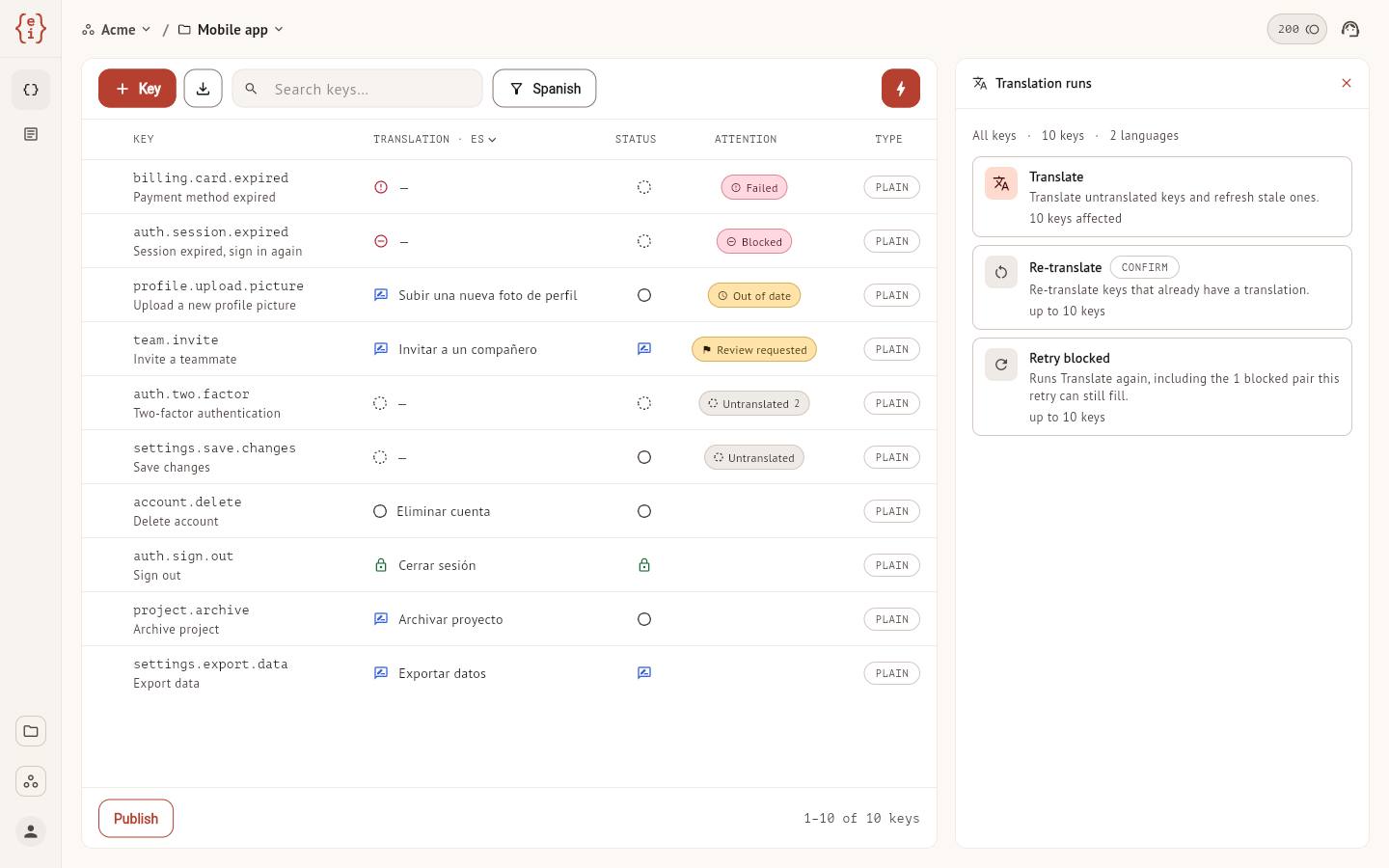
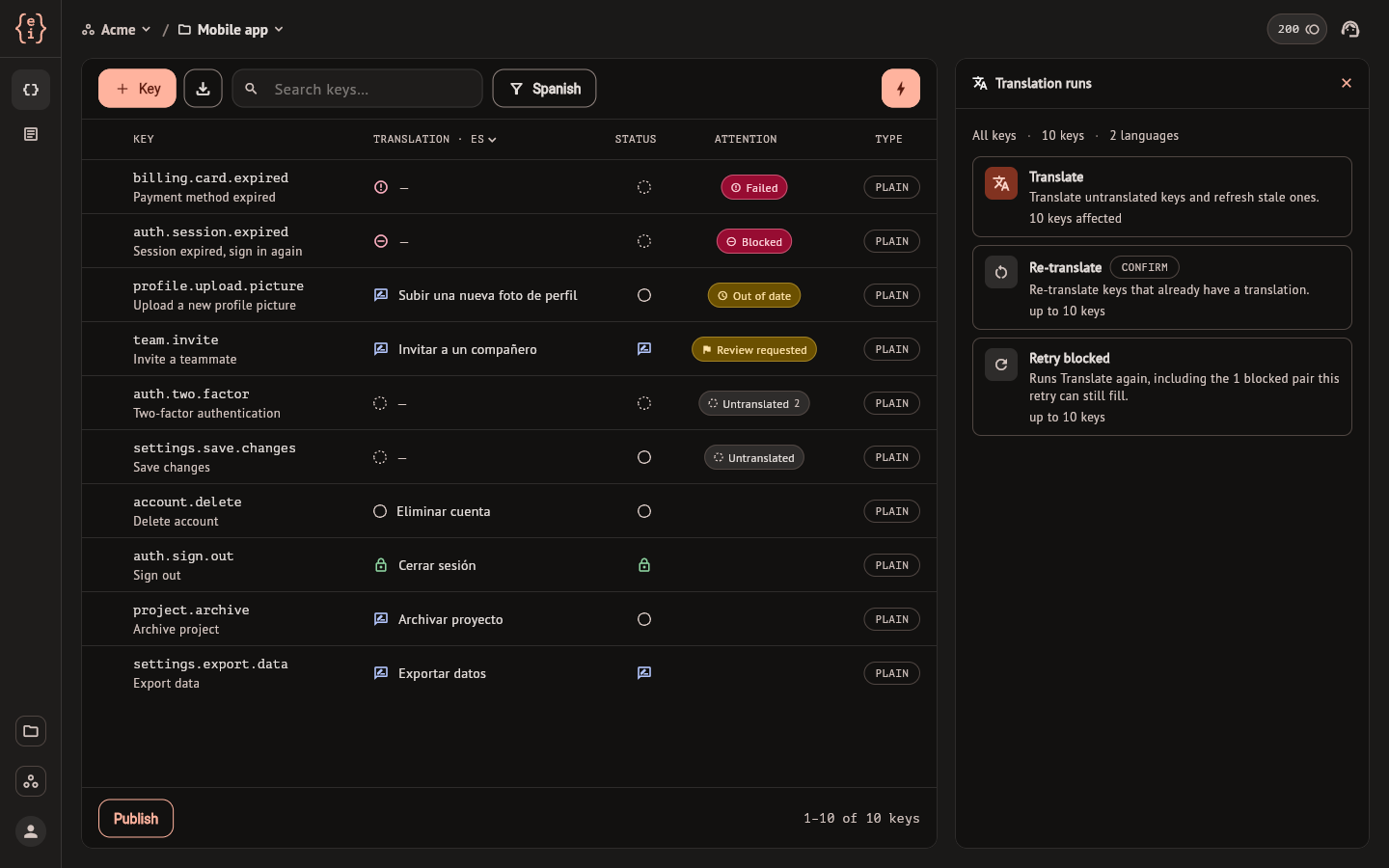
The translate button at the right of the Keys toolbar opens Translation runs. The first line states the reach: all keys, how many, and how many languages. That count ignores the search field and the filters: a run always covers the project.
| Row | What it does |
|---|---|
| Translate | Translates the keys that have no translation and refreshes the unreviewed ones whose source changed since. Starts at once |
| Re-translate | Translates again keys that already have a translation. Asks first |
| Retry blocked | Runs Translate again and includes the translations the AI had stopped retrying. Shown only when there are some it can still fill |
Re-translate opens a dialog where you choose how far it reaches:
- Keep reviewed re-translates everything that is not reviewed or approved. Those are kept as they are, except a plural that is missing forms: it gets them filled in and loses its review status.
- Replace all also re-translates reviewed and approved translations. They lose that status and come back as machine output. The dialog says how many will be replaced.
One run at a time: while a run is in progress, or while a save is still filling its key, the rows say they are waiting and cannot be launched.
Two notes can appear under the rows. One counts the manual languages the run skips. The other counts the sources that need verification, when the project checks sources before translating; they are left out of the run until they are verified.
One language
The project settings under Languages list each target language with its counts and a translate button. That button opens Translate keys for the language, with how many keys are untranslated and how many need review, and the same three rows as the project-wide panel, limited to that language.
Follow a run
While something is translating, a chip appears in the top bar next to the credit balance. It opens the runs monitor, a panel on the right that lists each run in progress with its progress, who started it and a button to cancel it. A run started by a teammate or through the API is listed too. Cancelling keeps what was already translated.
When a run ends, a message says how many keys it translated and how many credits it spent. A run that stopped before finishing says so, and running Translate again picks up what is still missing.
A translation that did not arrive is marked on its key. Failed means the AI could not produce the value and the next run tries again. Blocked means the AI stopped retrying that translation for the current source and model: use Retry in the row or Retry blocked in the panel, or type the translation yourself. The row in the editor says why when it knows: out of credits, AI translation unavailable, the service was busy, or the run was stopped before reaching it. Review and statuses lists every mark.
Models
The project settings under AI engine have a Model tab with the models the project can translate with, each with its speed, quality and cost. One model is the Default: saves and runs translate with it. Up to five models can be Offered, and the default is always one of them.
The offered models are the ones you can pick for a single action. In the editor, the arrow next to a language's AI button opens Run this once with; choosing a model translates that language with it and leaves the default as it was.
Each AI translation records the model that wrote it. The Origin section of the list's filters has a chip per model, so you can list what a given model translated.
Credits and cost
Every AI translation spends credits from the workspace balance. Concepts explains the unit, and Billing and credits covers the balance, the spending cap and the usage list.
A keys run does not show an estimate before it starts. It is charged after it runs, on what the model reported, and the message at the end states the credits spent. Each charge is then listed under Usage in the workspace settings. Only Content runs ask for confirmation, with an estimate, before a large run.
When the workspace runs out of credits, the run stops and keeps what it had
translated. The chip in the top bar reports it, and the translations that were
left out read Out of credits in the editor. Add credits or wait for the
monthly refill, then run Translate again.
Check the source before translating
A typo in the source is translated into every language. Source verification has the AI read a source text for typos, grammar, clarity, tone and consistency before it is translated, using the project's context and tone. It comes with the paid plans; on the Free plan its controls open the upgrade dialog.
One key. In the editor, Verify under the source checks the text as it is in the field, saved or not. If it is clean the button turns into Verified. If the AI finds something, a panel under the source shows the finding and, when it has one, a corrected text you can edit: Accept puts it in the source field, Dismiss keeps your text and marks it verified. A finding without a correction has one button, Keep as-is, with the same effect. A plural source is only checked for its structure, which costs no credits, and its findings come without a correction.
Before every translation. In the project settings under Dimensions, on the Keys tab, the switch Auto-verify sources with AI before translating makes a verified source a condition for AI translation. With it on, saving a key whose source is new or changed does not translate it. Select Verify in the editor, accept or dismiss the finding if there is one, and save: the key is then translated. Runs skip the keys whose source is not verified and tell you how many they left out. Verifying spends credits, except when the source was already verified.
Findings of a whole project. Verify sources with AI, on the same tab, opens Key sources, the list of open findings left by a verification of the whole project. Each finding there is accepted, accepted and re-translated, or dismissed, and the decisions apply when you select Save changes. The dashboard has no control that starts a verification of the whole project, so that list stays empty: Verify on a key and the auto-verify switch are the ways to verify a source.