Review and statuses
Review is how people sign off on a translation. This page covers the statuses and where the dashboard shows them, how to sign one translation or many, the marks that call for attention, and the three records of what happened to a key: comments, history and the project's activity. The model behind it is in Concepts.
Statuses
A translation has one status per language.
| Status | Meaning |
|---|---|
| Untranslated | The language has no value for the key |
| Translated | It has a value that no person has signed. AI runs and imports leave translations here |
| Reviewed | A person read the value and signed it. Saving a translation you typed signs it too |
| Approved | The final sign-off |
Review is optional: a Translated value is published like any other, unless a publish asks for approved translations only. What a signature buys is protection. An AI run does not overwrite a reviewed or approved translation unless you launch a re-translation with Replace all.
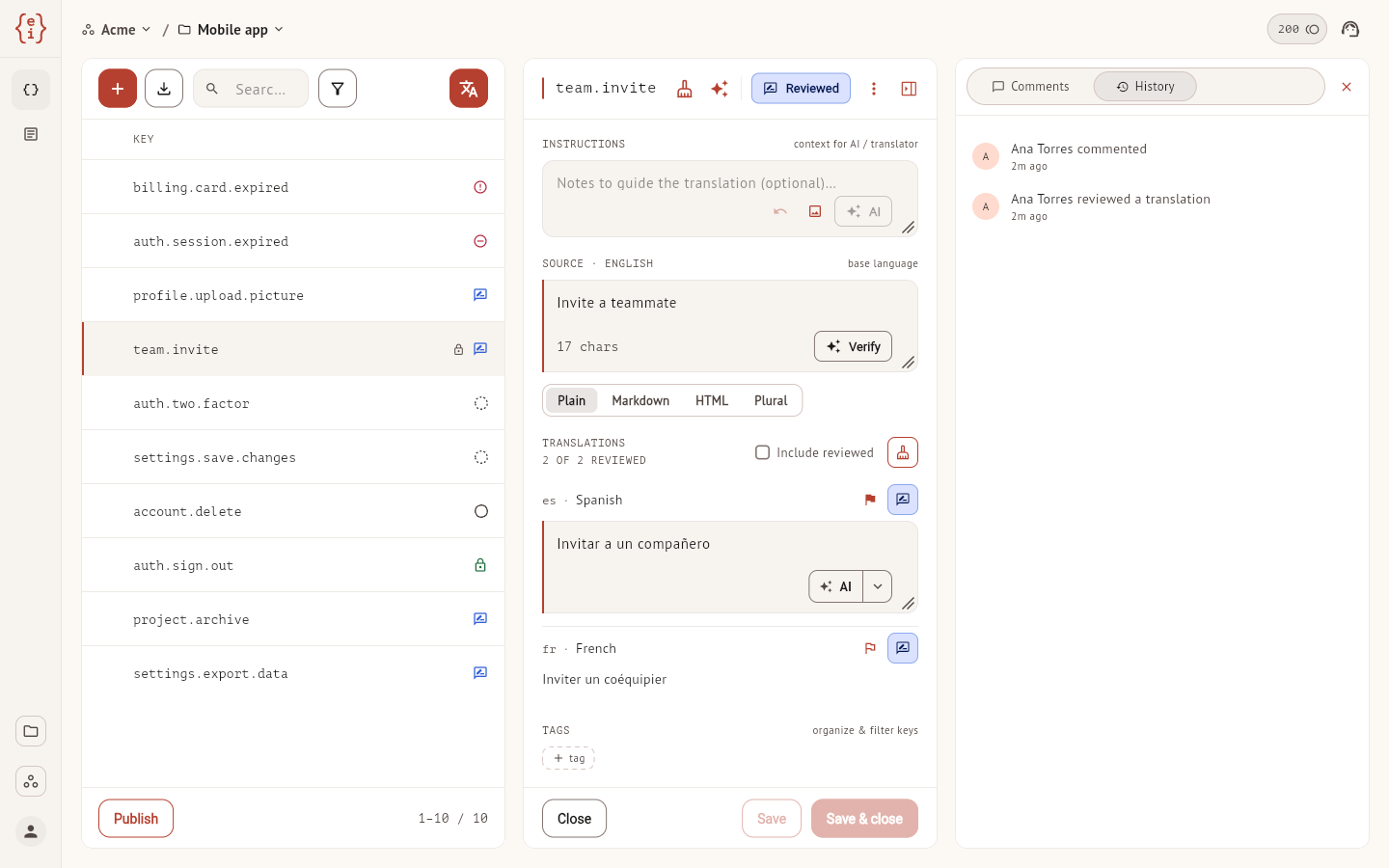
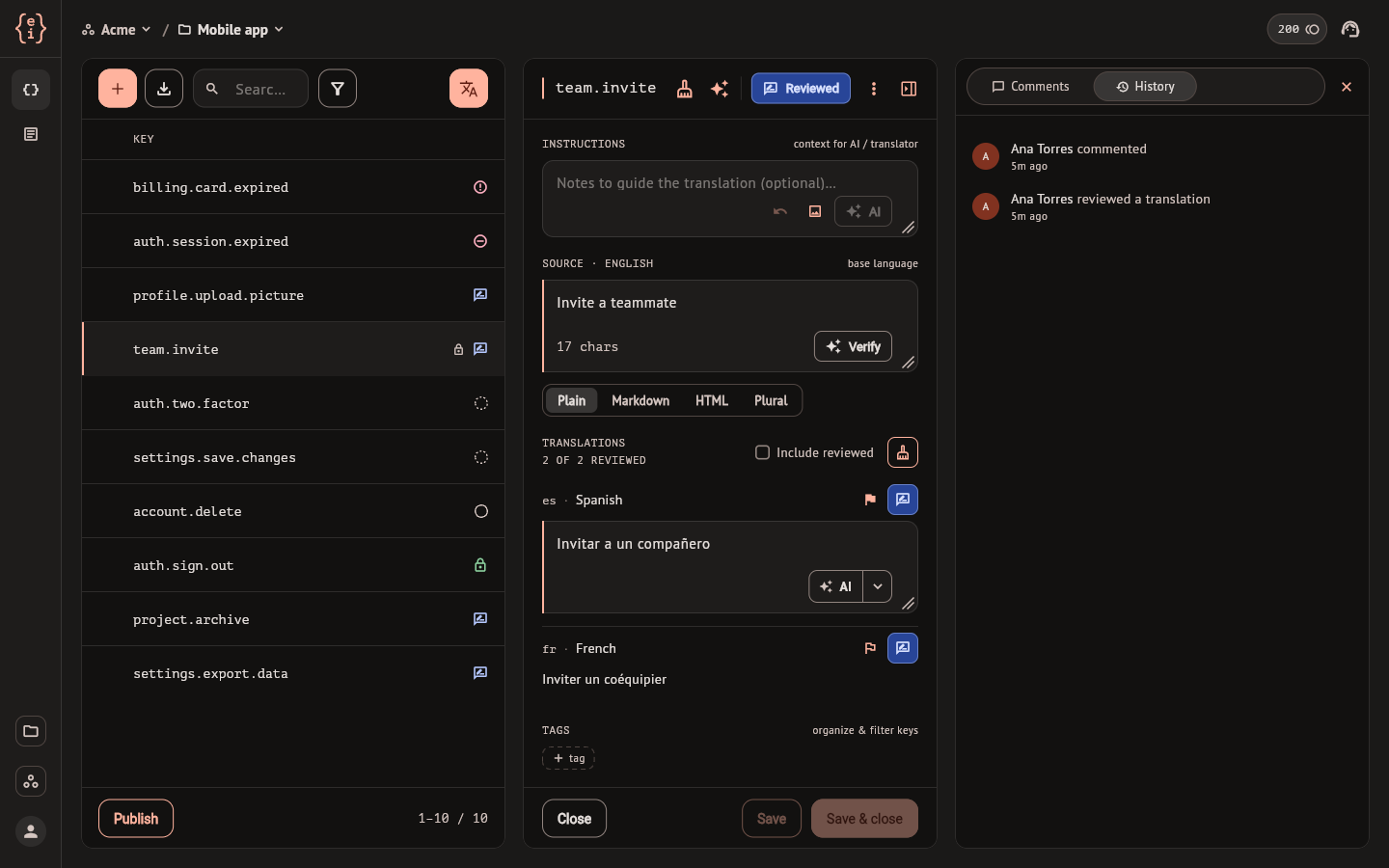
Each status has an icon, the same everywhere: in the Translation column of the list, in the Status section of the filters, and on the toggle of each language in the editor. The Status column of the list and the toggle in the editor's header show one status for the whole key, as described in Keys editor.
Sign a translation
One language. In the editor, each language row ends with a status toggle. Selecting it moves the translation one step: Translated, Reviewed, Approved, and back to Translated. The change is stored at once, without Save, and applies to the saved text, not to what you may be typing. The toggle does nothing while the language has no translation.
Every language of a key. The toggle in the editor's header does the same for all target languages together. It is available once every target language has a translation and none is being translated or has failed. When the languages are in different statuses, it asks before setting them all to the same one.
Going back to Translated withdraws the signature and leaves the text as it is. That is also how you undo a sign-off made by mistake.
Above the rows, the editor counts how many languages of the key are reviewed or approved.
Marks
Marks sit beside the status and do not change it. The list shows the most urgent one in the Attention column, and the Marks section of the filters narrows the list to any of them.
| Mark | Meaning | How it clears |
|---|---|---|
| Failed | The AI could not produce the translation and will try again | The next run, or Retry in the row |
| Blocked | The AI stopped retrying this translation | Retry, Retry blocked, or typing the translation |
| Incomplete | A plural translation lacks one of the forms its language needs | Fill in the missing form and save |
| Out of date | The source changed after a person confirmed the translation | The clock button in the row, or editing, reviewing or approving the translation |
| Review requested | Someone asked for another look | The flag button in the row |
| Untranslated | The language has no value | Translate it |
Failed and Blocked belong to AI translation and are covered in Translate with AI.
An Out of date translation may still be correct. The clock button confirms it against the source as it is now, without touching the text, which is the answer when the source only had a typo fixed. An out-of-date translation keeps its status and is still published.
Review requested is a flag anyone working in the project can raise on a language that has a translation, and lower again. It is independent of the status: an approved translation can have a review requested and stays approved.
Find what needs review
- Open Filters, pick the language, and select Translated under Status: the list shows the translations nobody has signed in that language.
- Select Review requested or Out of date under Marks for the ones someone flagged or the ones whose source moved.
- Without filters, the default order already puts the keys with a mark first.
- The project settings under Languages show, for each language, how many keys are at each status and how many carry a mark.
Set the status of many keys
Tick the keys in the list, select Bulk, then Set status.
- Pick one mark. Under Signature: Reviewed, Approved or Back to translated. Under Source: Still valid. Under Review: Request review or Clear review request.
- Pick the languages: All languages, or one chip per language.
- Select Apply.
A message then says how many translations were updated and how many were skipped. Languages with no translation are skipped, and so are disabled keys. A translation that someone edited while the change was being applied keeps the mark it had.
Still valid confirms every selected translation against the current source, including the ones nobody had confirmed before, so use it on a selection you have read.
Comments
The panel button in the editor's header opens the key's comments and history beside the editor. Comments is one thread per key, shared by all its languages: type in the field at the bottom and select Comment. Each comment shows who wrote it and how long ago, and everyone with access to the project can read the thread.
History of a key
The History tab of the same panel lists what happened to the key, newest first, with who did it and when: the key being created or updated, a source change, a translation updated, reviewed or approved, a signature withdrawn, a translation confirmed as still valid, a review requested or cleared, a comment, an image attached or removed.
History is a record. It has no button to bring back an earlier value.
Activity of the project
The project settings under History have an Activity tab with the same kind of record for the whole project: keys and documents, members and invitations, languages, published versions, glossary terms and API keys. When more than one person appears in it, a row of chips narrows the list to one of them, and Load more fetches older entries.