Keys editor
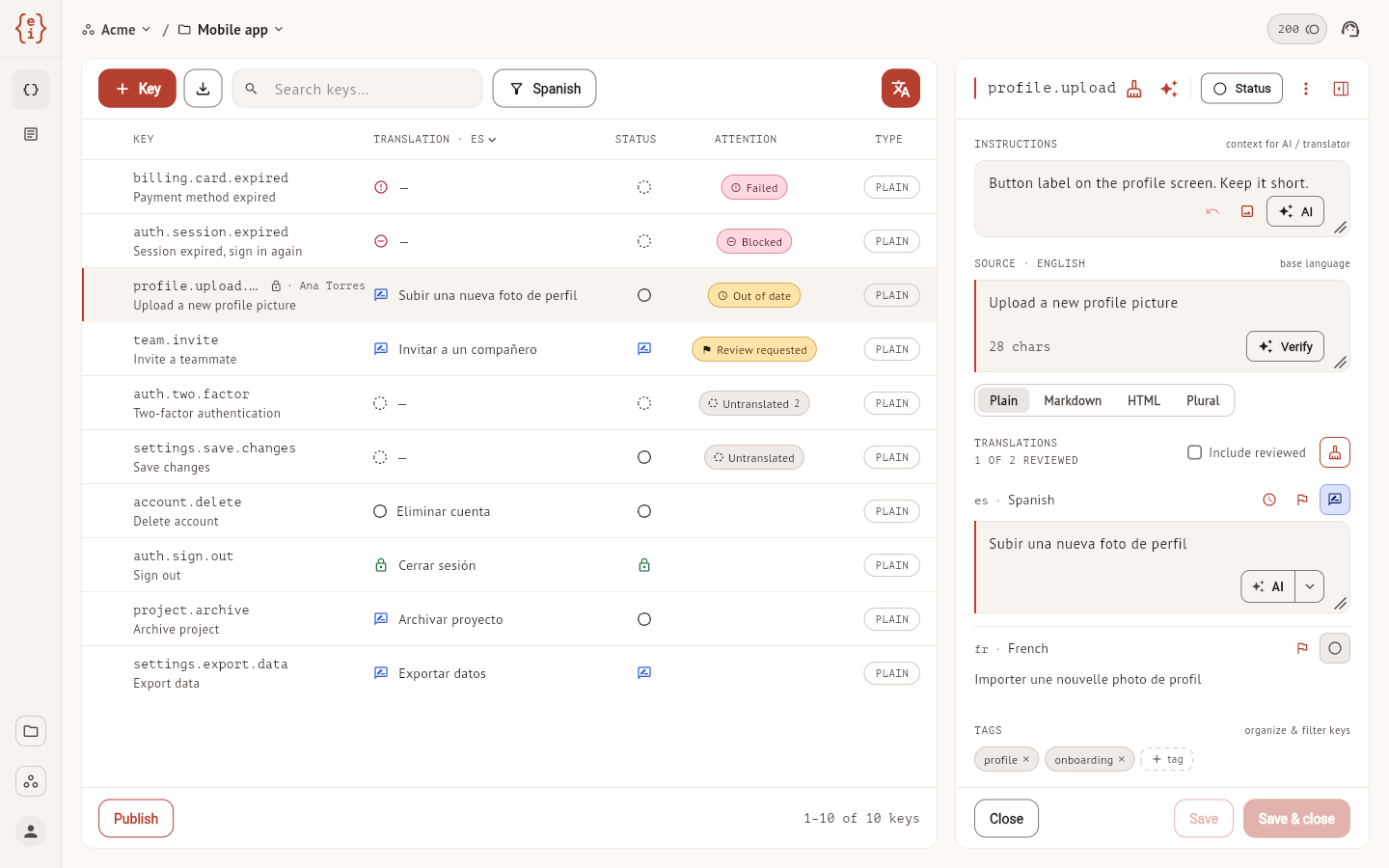
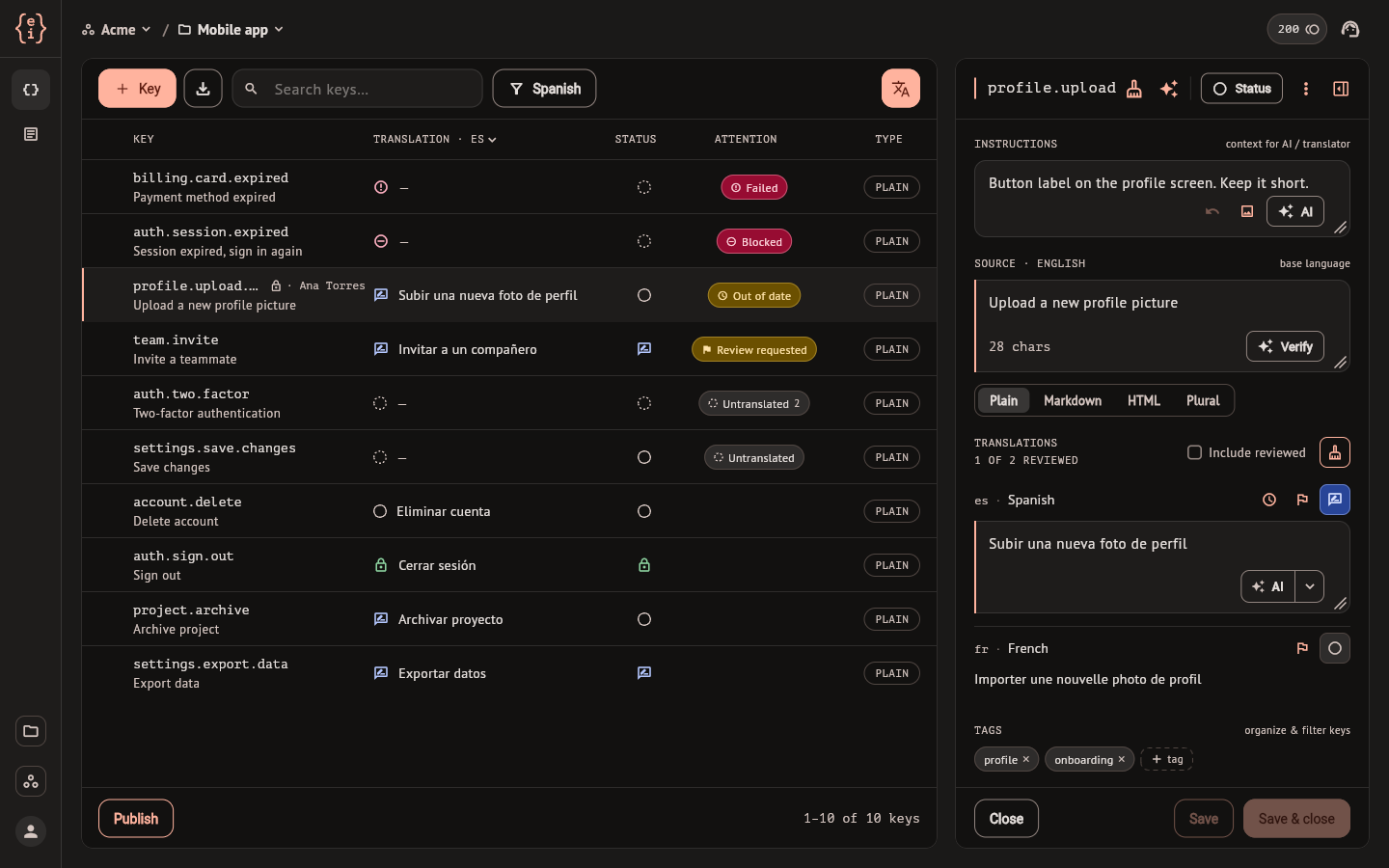
The Keys screen of a project lists every key with its source text and one translation, and opens a key beside the list to edit it. This page covers the list, search and filters, creating and editing a key, locks, and acting on several keys at once. The vocabulary is in Concepts.
Keys and Content
A project has up to two dimensions, and the left rail has one entry for each: Keys for the strings an application looks up by name, and Content for documents, in the projects that have Content enabled. Each entry opens its own list and editor, and both share the project's languages, glossary and AI settings.
The settings of each dimension are in the project settings under Dimensions. Its Keys tab holds source verification, described in Translate with AI.
The list
Each row is a key.
| Column | Shows |
|---|---|
| Key | The key name, in the project's naming convention, with the source text under it |
| Translation | The translation in one target language and its status icon. The header names the language, and its chevron switches to another one |
| Status | One icon for the key across its target languages. Present when the project has two or more target languages |
| Attention | The most urgent mark on the key, with a count when more than one language carries it |
| Type | Plain, Markdown, HTML or plural |
The Status icon reads Approved when every language that has a translation is approved, Reviewed when every one of them is reviewed or approved, and Translated otherwise. A language with no translation does not lower it: the gap shows under Attention instead.
Attention shows one mark per key, the first that applies of Failed, Blocked, Incomplete, Out of date, Review requested and Untranslated. Review and statuses says what each one means. A key with nothing pending has an empty cell.
A row can also carry badges next to the name: a lock with a person's name while someone has the key open, Disabled for a key that is switched off, and Not in code for a key the last scan of your source code did not find. Disabled rows are dimmed.
With no sort chosen, the list puts the keys that need attention first, in the order of the marks above, then the keys with nothing pending, and the disabled ones last; inside each group the order is alphabetical. Selecting the Key, Status, Attention or Type header sorts by that column, a second time reverses it, and a third time returns to the default order.
The list is not paged. The footer says which rows are in view, such as
21–30 of 240 keys, next to the Publish button and, once the project has
been published, the version being served.
Search and filters
The search field matches the key name, the instructions and the source text.
Each word you type has to start a word in one of them, so log finds
login.title and Log in to continue. Translations are not searched.
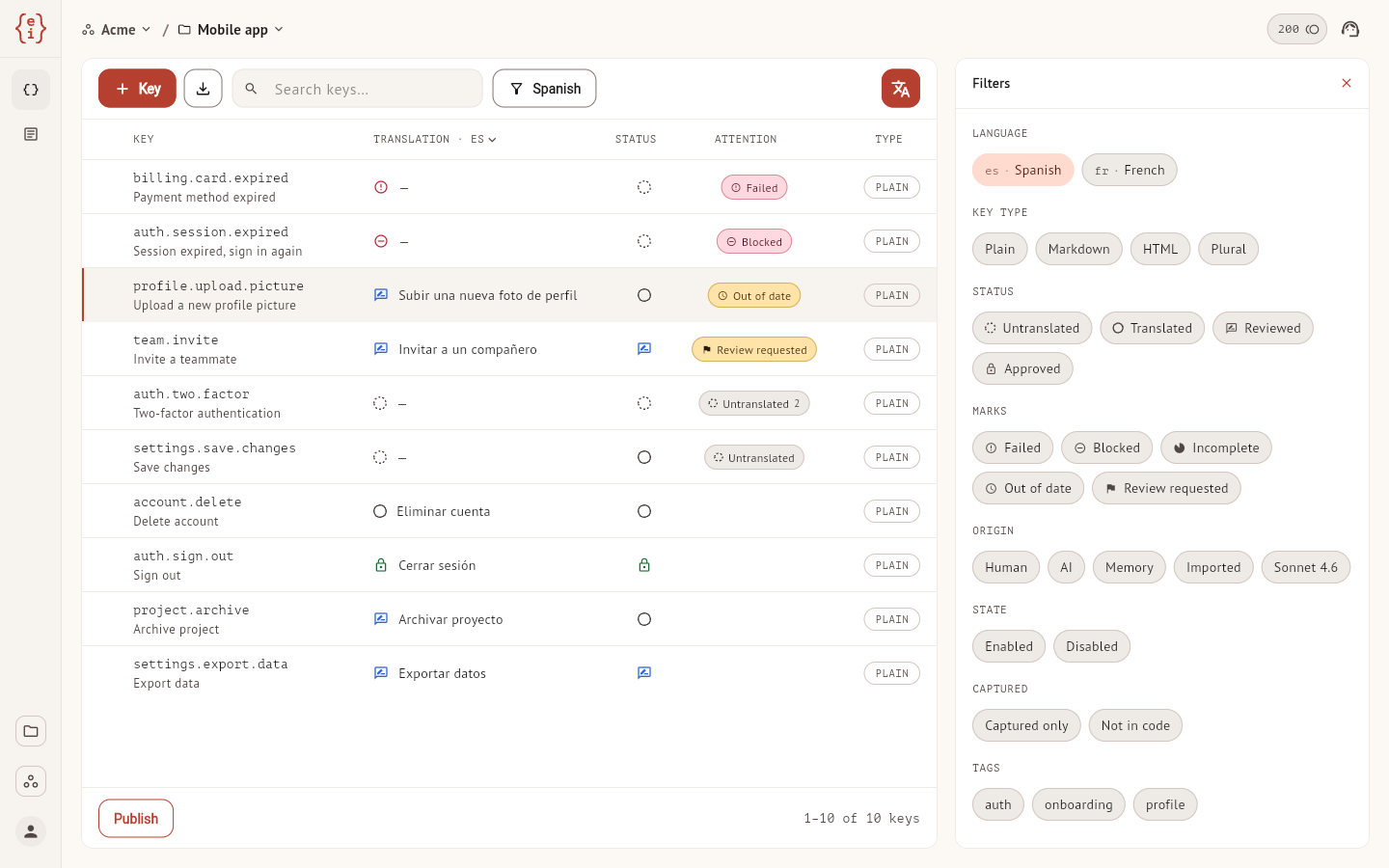
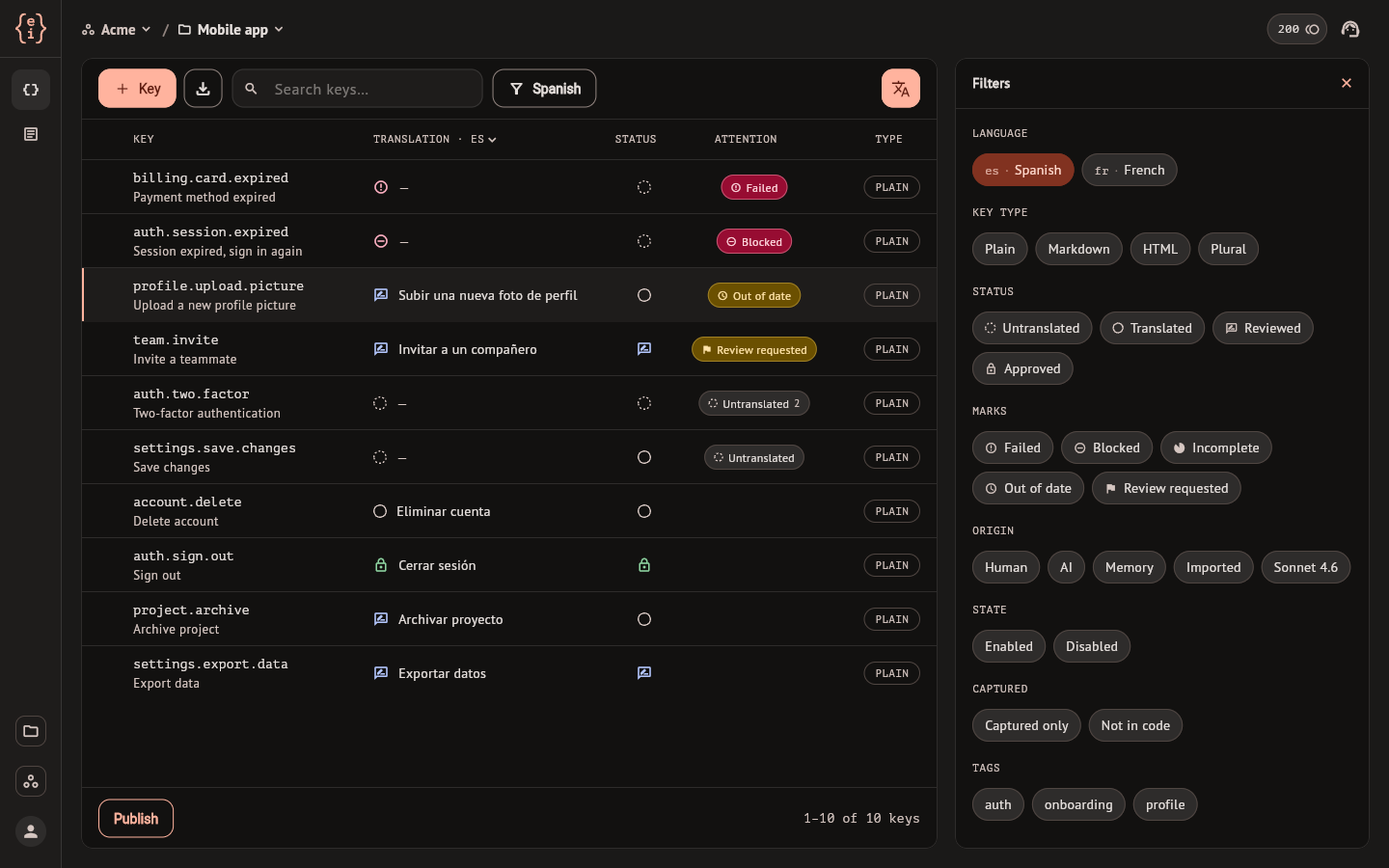
The button with the funnel and a language name opens Filters.
| Section | Narrows to |
|---|---|
| Language | Picks the target language the Translation column shows; it hides no rows. Status, Marks and Origin below are read against that language |
| Key type | Plain, Markdown, HTML, Plural |
| Status | Untranslated, Translated, Reviewed, Approved |
| Marks | Failed, Blocked, Incomplete, Out of date, Review requested |
| Origin | Where the value came from, such as Human, AI or Imported. One more chip appears for each AI model that wrote a value in that language |
| State | Enabled, Disabled |
| Captured | Captured only: keys the runtime SDK registered that still lack a translation. Not in code: keys the last scan of your source code did not find |
| Tags | The tags in use across the project's keys |
Chips inside a section add up: Reviewed and Approved together list both. Sections narrow each other: Plural with Untranslated lists the plural keys that have no translation in the chosen language. A model chip only matches AI values, so the model chips are disabled while Origin is set to something that leaves AI out.
The button fills in while a filter is on, and its tooltip shows how many. When nothing matches, the list offers Clear filters, which also empties the search field. Sorting is kept apart from filters and survives clearing them.
Create a key
- Select Key in the toolbar. A blank editor opens beside the list.
- Type the text under Source. While the name is empty, easyi18n writes one from the source text, in the project's naming convention, and adds a suffix if another key already has it.
- To choose the name yourself, type it. It takes letters, numbers, dots and underscores, and a name another key holds is refused. The sparkle button next to the name asks the AI for one, which spends credits.
- Fill in what else you know: instructions, the type, translations you already have, tags. The next section describes each field.
- Select Save, or Save & close.
Saving starts an AI translation of the target languages you left empty. A translation you typed yourself is saved as Reviewed.
The button with the download arrow, next to Key, opens the import: from a file, or with AI from a screenshot or pasted text. Import keys covers both.
Edit a key
Selecting a row opens the key. From top to bottom the editor has:
- The name. Editing it renames the key when you save. The broom empties the field and the sparkle asks the AI for a name.
- The status toggle, which sets the review status of every language of the key at once. See Review and statuses.
- The menu (⋮), with Enabled and Delete key.
- The panel button, which opens the key's comments and history.
- Instructions. Notes for the AI and for translators: where the text appears, what to keep short, what a placeholder stands for. They are sent with every AI translation of the key. The AI button under the field rewrites your notes in the base language, and the undo arrow beside it restores what you had. You can attach up to three reference images, by picking them or pasting from the clipboard: PNG, JPEG, GIF or WebP, up to 6 MB each. Translators see them, and the AI reads them when it rewrites the notes; they are not sent with a translation.
- Source. The text in the base language, with its character count, and the maximum when the key has one. Verify checks the text with AI before it is translated.
- The type: Plain, Markdown, HTML or Plural. A plural key asks for the
Variable name, the number that selects the form (
countunless you change it), and has one field for each plural form of the language;otheris required. - Translations. One row per target language, starting with the language the list is showing. A row holds the text, a flag to request a review, a clock when the source changed after someone confirmed the translation, and the status toggle of that language. The AI button in a row translates that language into the field right away; nothing is stored until you save. When the project offers more than one model, the arrow next to AI picks the model for that one run. Plural keys have no per-row AI button: saving fills their missing languages.
- Tags, up to twenty per key. They feed the Tags filter of the list.
Clean, the broom above the translations, empties the translation fields so that saving translates them again with AI. Reviewed and approved translations are left alone unless Include reviewed is ticked.
Save is available when something changed, and also when a language has no
translation, because saving is what queues it for AI translation. The footer
says unsaved changes while there are any.
Saving a Markdown or HTML key checks the markup first. A tag or attribute
that is not allowed, a link that is not http, https or mailto, an
unclosed tag, or a translation whose markup differs from the source opens
Markup needs a fix with the list of problems, and nothing is saved until
they are fixed. When the source of a key carries Markdown or HTML and its type
would show the markup as plain characters, saving offers to switch the type.
Locks
Opening a key locks it for you, so two people do not overwrite each other. While you have it open, the list shows a lock and your name on that row to everyone in the project.
Someone who opens a key you hold sees it read-only, under a banner that says who holds it. The lock is released when you close the key. If the holder's browser went away without releasing it, the lock expires 90 seconds after its last sign of life: the banner counts down to that moment and then enables Take over now.
Act on several keys
Hovering a row shows its checkbox. Once a row is ticked, the toolbar gains a Bulk button and the footer counts the selection. The buttons of the panel state the count, as in Disable 3 keys.
| Action | Effect |
|---|---|
| Disable keys | Switches the selected keys off. They stay in the project and are left out of published output and of AI runs |
| Enable keys | Switches them back on and queues the translations they are missing |
| Set status | Applies one review mark to the selected keys, in all target languages or in the ones you pick. See Review and statuses |
| Delete keys | Deletes them, after a confirmation. See Trash |
Disabling and enabling apply at once, to every selected key, and keep the selection, so you can chain actions. If a filter or the search hides part of the selection, Set status and Delete keys ask whether to act on every selected key or only on the ones in view.
Disable or delete one key
Both are in the editor's menu. Enabled is a switch: a disabled key stays editable, is dimmed in the list, and is left out of published output and of AI runs until you enable it again. Delete key asks for confirmation and deletes the key. The confirmation mentions a trash, but the dashboard has no screen that restores a key: see Trash.