Documents
Content holds the long texts of a project: a pricing page, an email, release notes. This page covers adding a document, the document list and the editor. What a document and a block are is in Concepts.
Open a project and select Content in the left rail. A project with no documents shows two buttons, Import document and New document; once there is one, the same actions sit in the toolbar of the list.
Add a document
Write or paste it. Select Doc in the toolbar. The editor opens empty: give the document a name and paste or write the text. The format control at the top right reads MD, HTML or TXT; it follows what you type, detecting the format from the text, until you pick one yourself. Create needs a name and some content.
Import a file. Select the import button next to Doc, then drag a file
onto the card or browse for it. The card takes .md, .markdown, .html,
.htm and .txt files of up to 2 MB that contain UTF-8 text; anything else is
refused with the reason. Continue opens the same editor with the file name
as the document name, the text filled in and the format detected from the
text. Change any of the three before you select Create.
The format is declared once. easyi18n never converts a document from one format to another, and each translation comes back in the format of its source.
A new document starts in the project's base language and gets one translation per target language of the project. Languages are added in the project settings under Languages.
Size limits and blocked documents
easyi18n splits a document into blocks: headings, paragraphs, list items, code, block quotes, tables, HTML elements, front matter and thematic breaks. The block is what gets translated, compared with its source and reviewed.
Two limits follow from that. A document longer than 200,000 characters, or one with a single block longer than 6,000 characters, is saved but blocked: its row carries a note with the reason and no translation run starts for it until you shorten the source. The Free plan also caps how many documents a project holds; plan limits are on the pricing page.
The document list
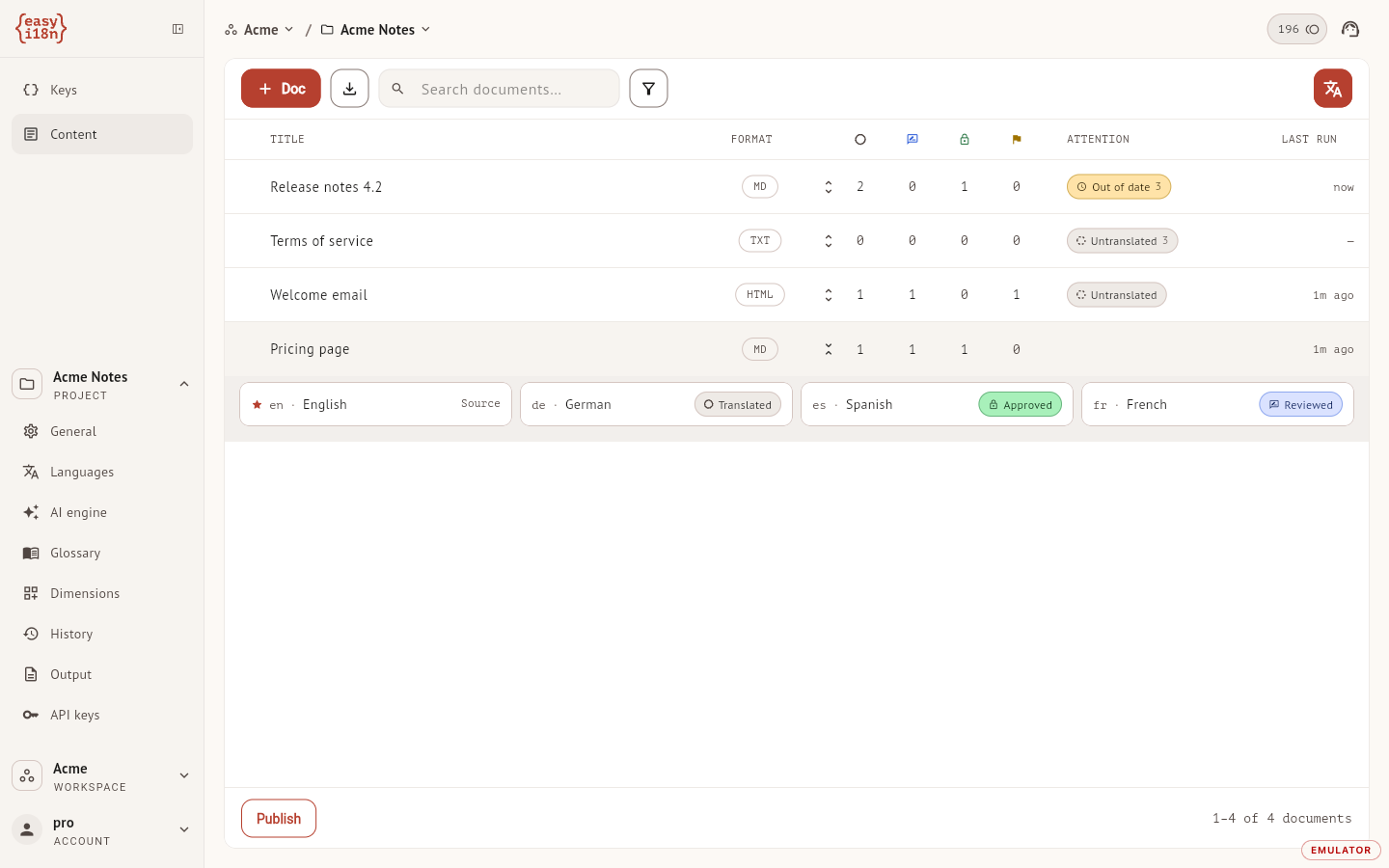
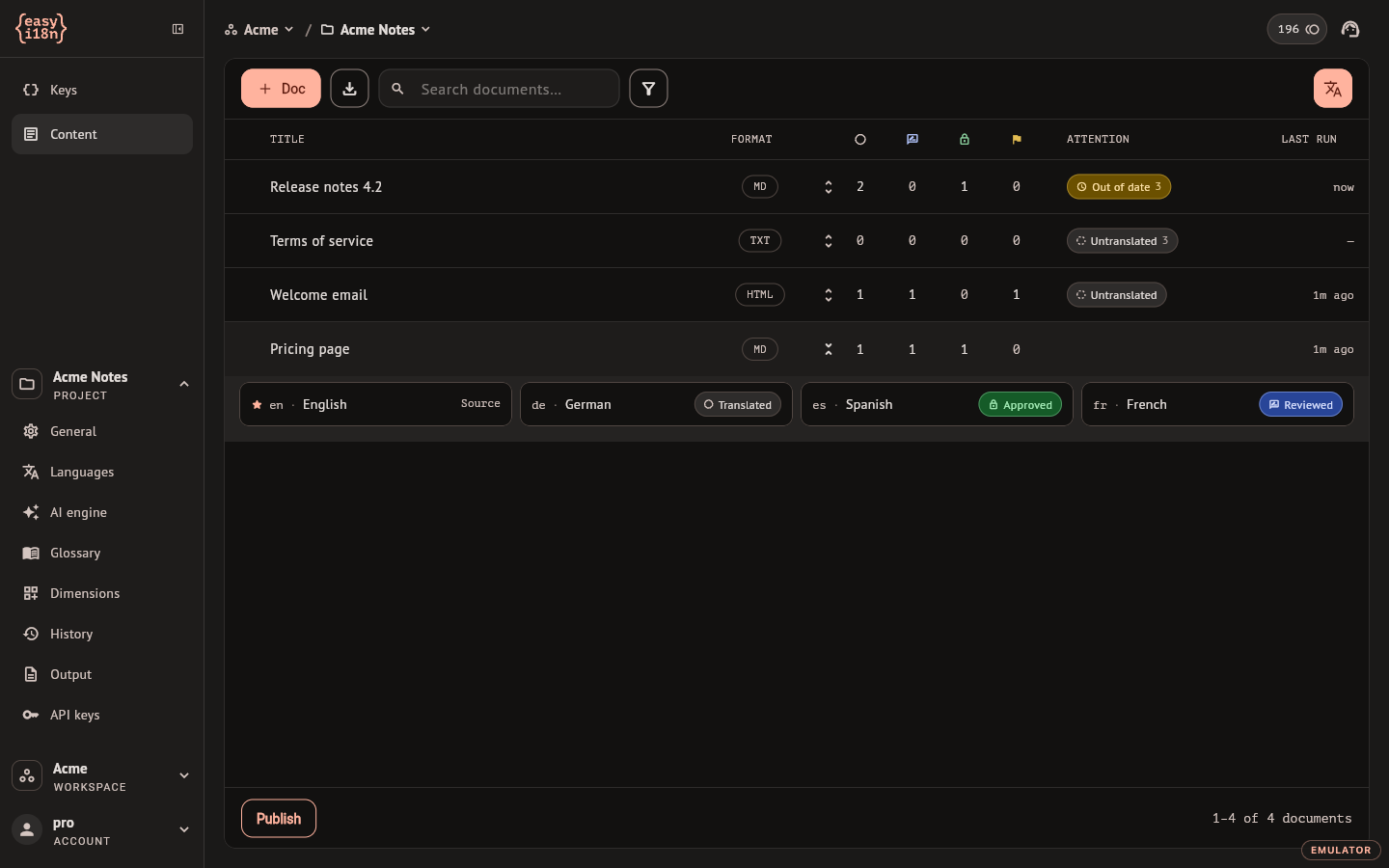
Each row is one document. The columns after the title and the format are:
| Column | Shows |
|---|---|
| Translated, Reviewed, Approved | How many languages sit on each rung. The three icons carry their names as tooltips |
| Flagged | How many languages carry a review request or a flagged block |
| Attention | The worst mark on the document and how many languages have it |
| Last run | When a run or an edit last wrote a translation |
The arrow on a row expands it into one chip per language with that language's exact state. Select a chip to open the document on that language.
The marks in Attention, from worst to least bad:
| Mark | Meaning |
|---|---|
| Failed | Blocks failed in the last run and have no translation |
| Step failed | The last run stopped before the end, for example in a step after Translate or for lack of credits. The text that was translated stays |
| Field too long | A named field that came with the document through the API is too long to translate into that language. Only the writer can shorten it |
| Running | A run is working on the language |
| Untranslated | The language has no translation yet, or blocks are missing |
| Out of date | The source changed after the translation was made |
| Flagged | A person asked for a review or flagged a block |
Select a column header to sort by it. The search box matches document names. The funnel button opens Filters, which narrows the list by format, by rung and by mark; values inside a section add up, and the sections restrict each other.
To act on several documents, hover a row and tick its checkbox. Bulk appears in the toolbar with two actions: Set status, described in Runs and review, and Delete.
The editor
Select a document to open it. The source is on the left and one target language on the right; the control above the translation switches language. The document name sits above the source, and each language has its own translated name above the translation. When the translation pane is narrow, its buttons show as icons and carry their names as tooltips.
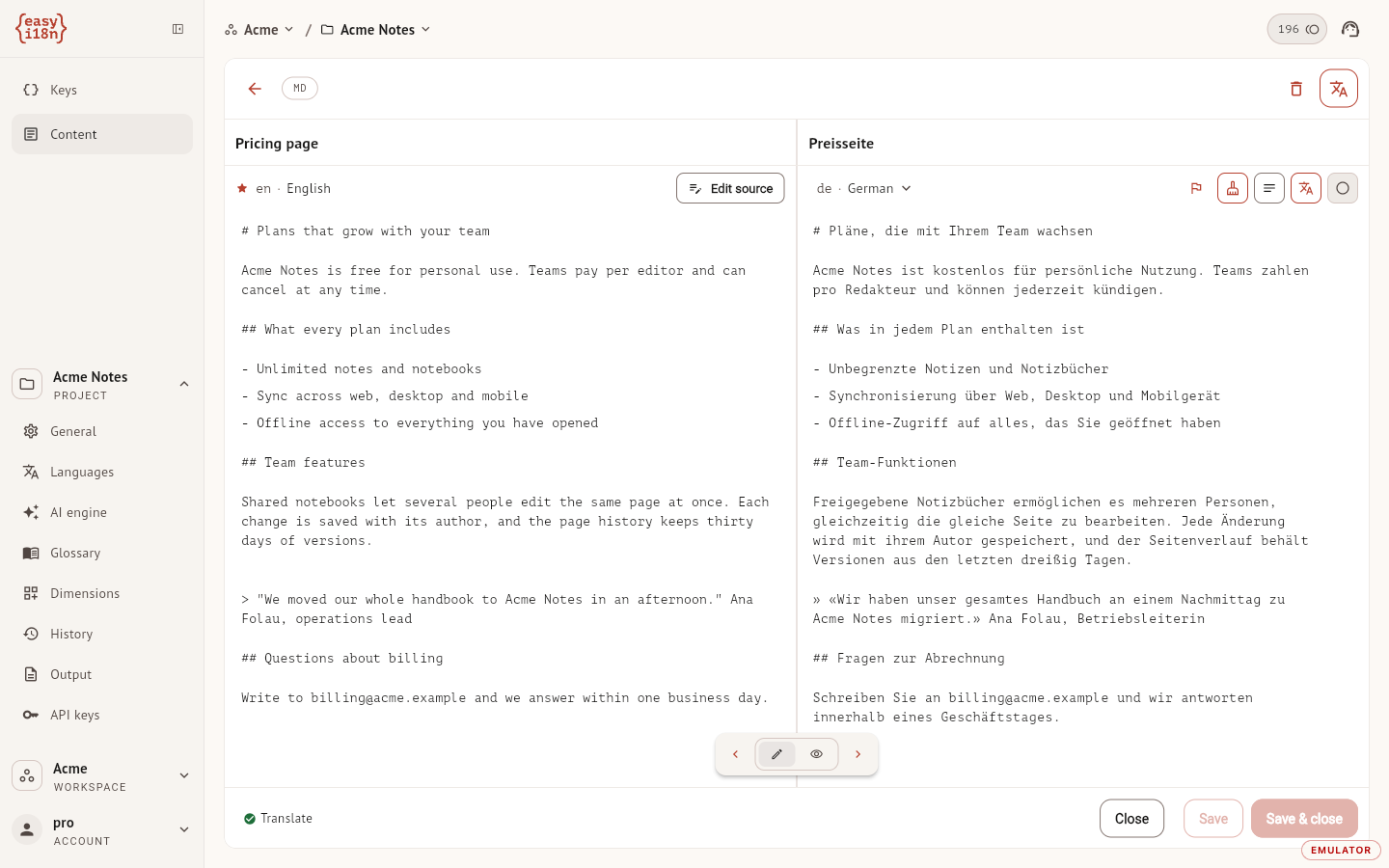
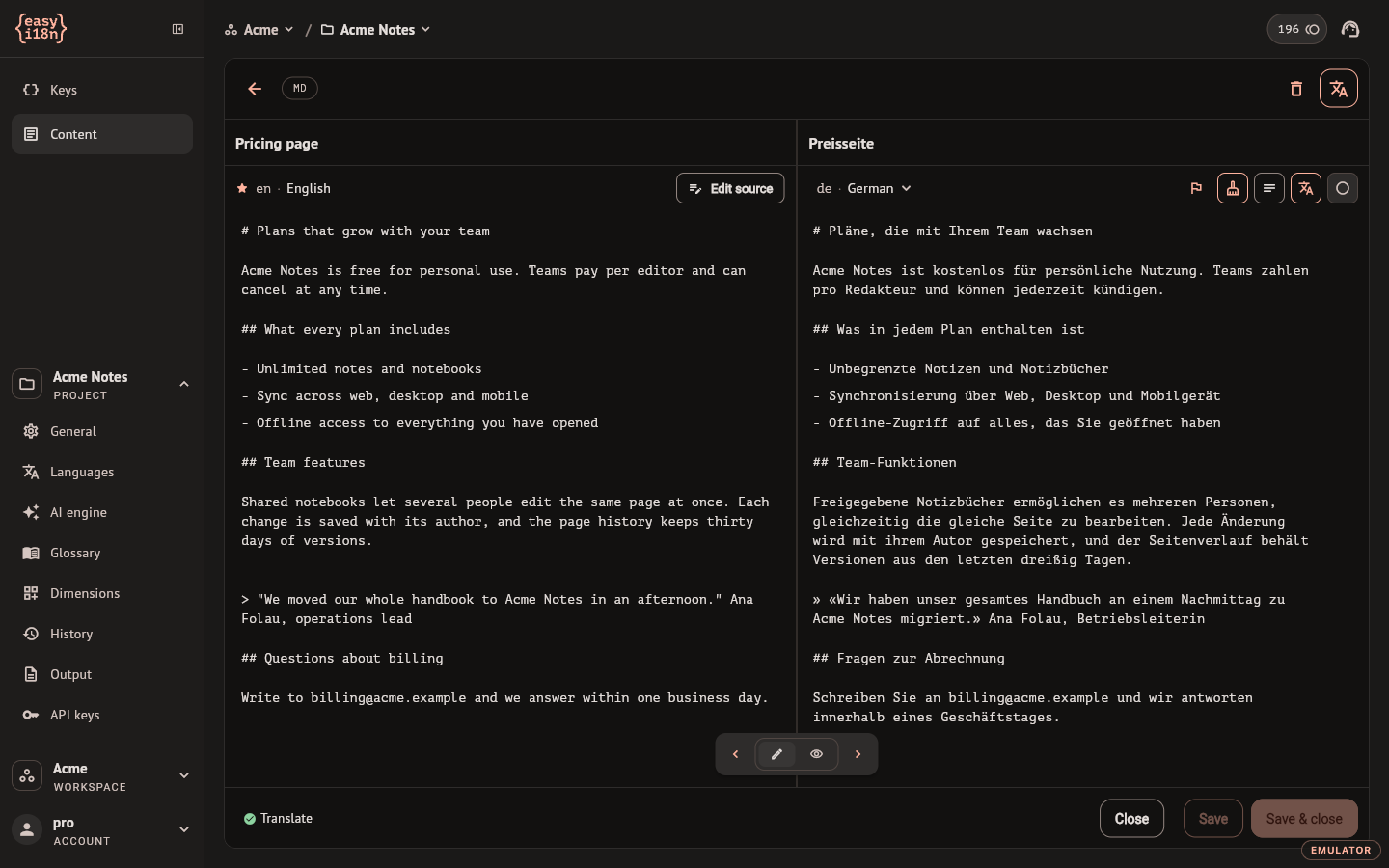
The control at the bottom centre switches between Edit, which shows the raw text, and Preview, which renders it and shows the state of each block. The arrows beside it collapse the source or the translation to give the other one the full width.
Edit the source. Select Edit source, change the text and select Save. The blocks you changed become out of date in every language; the blocks you did not touch keep their translations. The next Translate run refreshes the ones that are out of date.
Edit a translation. Type in the translation in Edit mode and save. A block edited by hand is marked Edited, later runs leave it alone, and the language loses its Reviewed or Approved status, because that status vouched for the previous text.
Take over a language. Free-form turns the translation of one language into a single text you write yourself. Per-block translation, review and out-of-date tracking stop for that language, and Translate runs skip it. A Re-translate run or Clean rebuilds it from the source.
Clean empties the translation of the language on screen, after a confirmation.
Save keeps the editor open, Save & close returns to the list, and closing with unsaved edits asks whether to discard them. If someone else saved the document while you were editing, your text stays in the editor and a second Save keeps it.
Delete a document
The bin in the editor header deletes the open document; Bulk deletes a selection. Both ask for confirmation. A deleted document leaves the list and the API stops serving it, including the versions already published.
The confirmation says the document moves to a trash. The dashboard has no trash for documents today, so treat a deletion as final.