Runs and review
A run sends one document through its pipeline for one language. This page covers starting runs, watching them, what a run leaves alone, and reviewing the result. The review vocabulary is in Concepts.
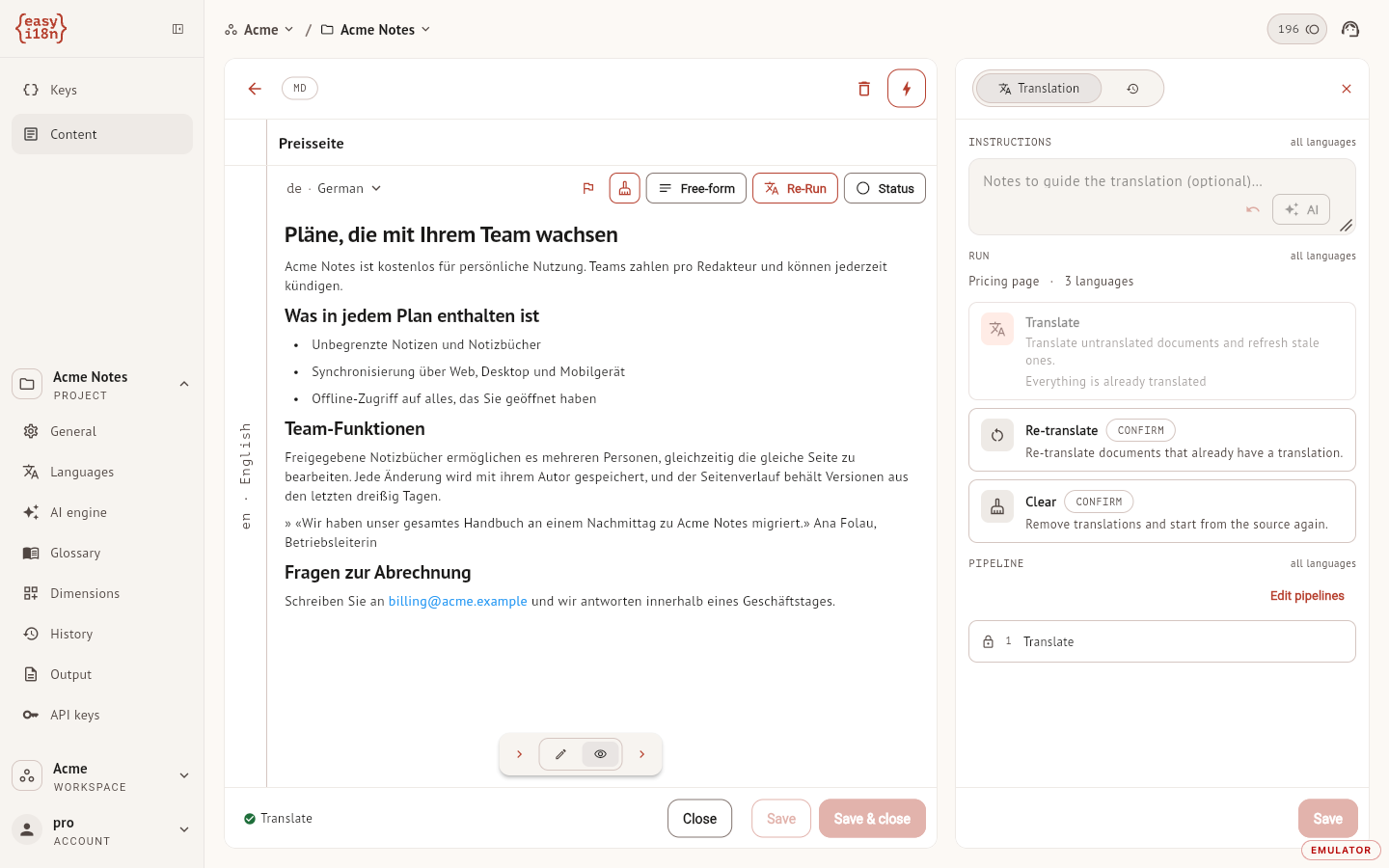
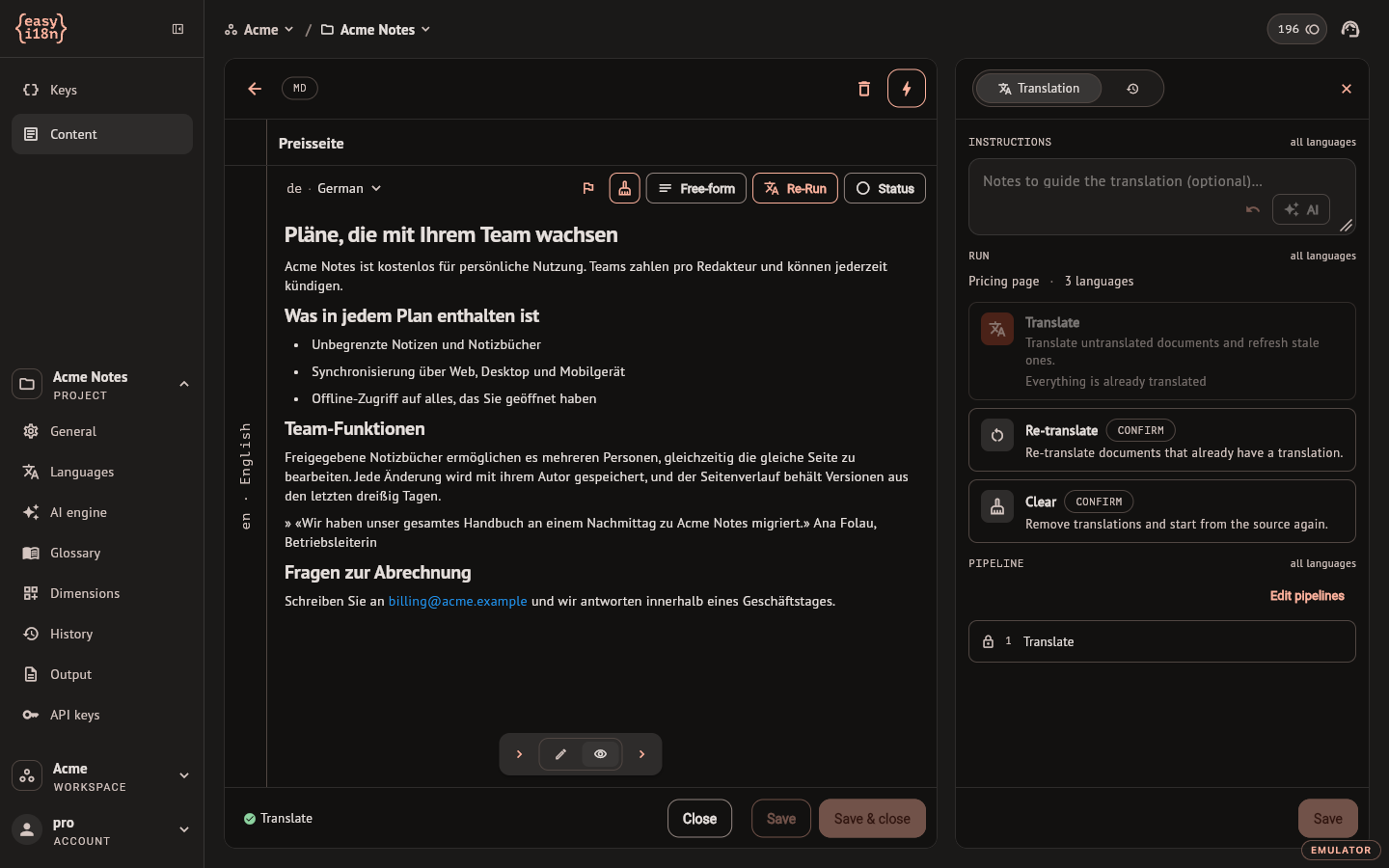
The three actions
| Action | What it does | Credits |
|---|---|---|
| Translate | Translates what has no translation and refreshes what is out of date | Yes |
| Re-translate | Translates again everything that already has a translation, signed languages included. Asks for confirmation | Yes |
| Clear | Removes the translations and starts no AI work. Asks for confirmation | No |
Translate leaves three things alone:
- A language signed Reviewed or Approved. The whole language is frozen, including when its source changed afterwards: it shows Out of date and stays as it is. Take the signature off, or use Re-translate, which rebuilds the language and drops the signature.
- A block edited by hand.
- A language switched to Free-form, and a language whose AI Translate switch is off.
When Translate finds nothing to do it says so and charges nothing.
Where to start a run
For every document. The translate button at the right of the list toolbar opens Translation runs, with the three actions applied to all documents and all target languages of the project.
For one document. In the editor, the button at the top right opens the Translation panel. Its Run group applies the three actions to this document in all its languages. When every language is already translated, Translate reads "Everything is already translated" and cannot be started.
For one language. The translation pane of the editor has its own button. It reads Run while the language has work to do and Re-Run once it is translated; Re-Run re-translates that language after a confirmation. Clean, beside it, clears that language.
A run translates the saved source. The editor saves pending edits to the source and the name before it starts one.
While runs are in flight for the scope you are looking at, the actions read "Waiting for the run in progress" until they finish. A document that is blocked cannot be run.
Instructions for one document
Instructions, at the top of the Translation panel, are notes for this document only, applied to all its languages on top of the project's translation instructions. The AI button rewrites your notes in the project's base language, which spends credits, and the arrow beside it undoes the rewrite.
The notes take effect once you select Save at the foot of the panel. With unsaved notes the panel warns that a run would still use the saved ones.
Credits and the cost warning
Runs spend the workspace's AI credits, charged on what the model used. Billing and credits covers the balance and the spending cap.
- If the project has a cost warning and the estimate of a run is above it, a dialog shows the estimate and asks Run anyway?
- If the balance or the spending cap cannot cover a run, it does not start and the dashboard says which of the two stopped it. When some languages started and others were refused, the message says how many started and why the rest stopped.
- A run that runs out of credits half way stops there. What it had translated stays.
Watch a run
A button that started a run turns into Show run. It opens the runs panel on the right, as do the busy rows of the two run panels. The panel lists the runs in flight, one per document and language, with the step they are on and a Cancel control. A cancelled run finishes the batch it is on and keeps what it had translated. The panel keeps no history: a run that ends leaves it.
The result stays on the document. The foot of the editor lists the pipeline steps of the last run for the language on screen, each marked Done, Running, Pending or Failed, and a failed step carries a short reason such as "markup mismatch", "no credits" or "output cut short". In the list, a language whose last run did not finish shows Step failed.
When a block cannot be translated, the language shows Failed and that block stays empty. Translate tries it again on the next run. After repeated failures on the same source and model the block is blocked and ordinary runs skip it; the retry button on the block, in Preview, runs the language again with those blocks included, after a confirmation.
A failure with the reason "instructions vs markup" means the instructions asked for a change to formatting that a step has to keep identical to the source. Edit the instructions and run again.
Review a language
Review happens per language, in the editor.
Read it in Preview. Preview renders the translation and marks the blocks that need a look: Edited for a block changed by hand, Flagged for one somebody marked, and a notice on a block whose source changed after it was translated, with a button that shows what changed in the source. Hovering a block offers Flag this block, a note for whoever reviews next. Flags do not change what a run does.
Sign it. The Status button cycles through no signature, Reviewed and Approved, and one more press takes the signature off again. It is unavailable while a run is in progress and until every block has a translation. Signing does not change the text. It freezes the language against Translate, and it is what a publish that counts only approved translations looks at.
Other marks, to the left of the Status button:
- The flag requests a review of the whole language, or clears the request. It is independent of the signature: an approved language can have a review requested.
- A clock appears when the source changed under a translation that exists. Selecting it confirms that the translation is still valid without changing it, which is what lets an out-of-date language publish as its own translation.
- When blocks are flagged, a button clears all the flags of the language.
Editing a block by hand removes the signature of its language, because the signature vouched for different text.
Mark several documents at once
Tick documents in the list, select Bulk and then Set status. Pick the mark, pick All languages or some of them, and select Apply. The result counts document languages, the pairs of a document and a language, that were updated and those that were skipped. A pair is skipped when the language has no translation yet, when a run is working on it, or when the mark would change nothing; reviewing and approving also need every block filled in.
When a filter hides part of your selection, the dashboard asks whether the action applies to the visible documents or to all the selected ones.